How to Mount a GCS Bucket as a Persistent Volume in GKE (Step-by-Step)
Environment: Google Kubernetes Engine (GKE) · Google Cloud Storage (GCS) · GCS Fuse CSI Driver
Who Is This For?
If you are a DevOps engineer or platform engineer running workloads on GKE and need your pods to read and write files stored in a Google Cloud Storage (GCS) bucket — without spinning up a Filestore instance or managing a custom NFS setup — this guide is for you.
By the end of this tutorial, you will have a GCS bucket mounted as a Persistent Volume Claim (PVC) inside your Kubernetes namespace, accessible to any pod, using the GCS Fuse CSI driver and Workload Identity.
The Problem
Applications running in Kubernetes (GKE) often need access to files stored in a Google Cloud Storage (GCS) bucket. However, pods cannot directly use a GCS bucket as a filesystem — GCS is an object store, not a POSIX filesystem.
To enable applications to read and write data as if it were a normal directory, the GCS bucket must be mounted as a Persistent Volume Claim (PVC) using the GCS Fuse CSI driver, which handles the translation layer between the object store and the filesystem interface.
Step 1: Enable GCS Fuse CSI Driver in GKE
To mount a Google Cloud Storage (GCS) bucket in a Kubernetes (GKE) cluster, the GCS Fuse CSI driver must be enabled as a cluster add-on. This is a one-time cluster-level setup and does not affect existing node pools, pods, or deployments.
Check if GCS Fuse CSI Driver is Already Enabled
Run the following command to verify whether the driver is already active in your cluster:
gcloud container clusters describe fl-data-stag-as1 \
  --region asia-south1 \
  --project fl-direct-vod-control-plane | grep gcsfuse
If you see gcsfuseCsiDriver in the output, the driver is already enabled and you can skip to Step 2.
If the driver is not enabled, run:
gcloud container clusters update fl-data-stag-as1 \
  --update-addons GcsFuseCsiDriver=ENABLED \
  --region asia-south1 \
  --project fl-direct-vod-control-plane
After running this command, the GKE cluster enters a brief update state. This process is non-disruptive — it only enables the add-on.
Verify the GCS Fuse Pods
Once the update is complete, check the kube-system namespace. You should see GCS Fuse CSI driver pods running as a DaemonSet — one pod per node.

GCS Fuse Driver setup is complete. Now move on to the core configuration.
Step 2: Create a Google Service Account (GSA)
To allow Kubernetes workloads to access a GCS bucket, you first need to create a Google Service Account (GSA) in the GCP project where your GKE cluster is running. This account will be used as the identity for bucket access.
Replace <your-project-name> with your actual GCP project.
Create the Service Account
- Open the Google Cloud Console.
- Select your project
<your-project-name>. - Navigate to: IAM & Admin → Service Accounts
- Click + CREATE SERVICE ACCOUNT.
- Enter the following details:
- Service account name:
gcs-bucket-access-sa - Service account ID:
gcs-bucket-access-sa(auto-generated) - Description: Service account for mounting a GCS bucket using GCS Fuse
- Service account name:
- Click CREATE AND CONTINUE.
- Skip role assignment for now — permissions will be granted at the bucket level.
- Click DONE.
Why skip role assignment here? Granting access at the bucket level (instead of the project level) follows the principle of least privilege — the service account can only access the specific bucket you choose.
Step 3: Grant Permission to the GCS Bucket
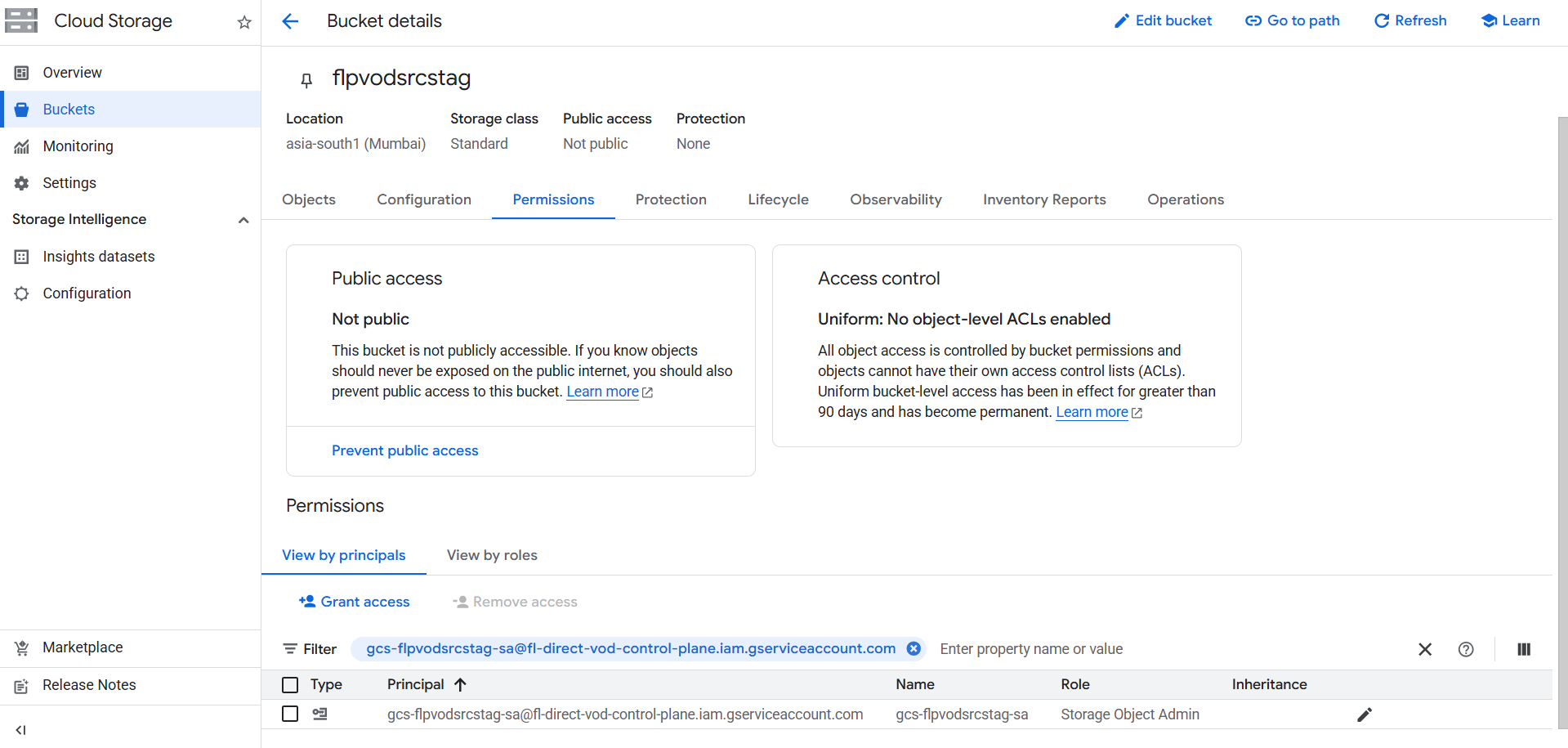
Now grant the newly created GSA access to your target GCS bucket. This allows the Kubernetes workload to read and write objects when the bucket is mounted via GCS Fuse.
- Open the Google Cloud Console.
- Navigate to Cloud Storage → Buckets.
- Select your target bucket.
- Go to the Permissions tab.
- Click GRANT ACCESS.
- In the New principals field, enter the email of the service account created in the previous step.
- Assign the role: Storage Object Admin
This role grants the workload full read/write access to objects inside the bucket.
Note: If your bucket is in the same project as your GKE cluster, you can grant the permission directly to the service account as shown. If the bucket is in a different project, make sure you are granting access in the project that owns the bucket.
Step 4: Create a Kubernetes Service Account (KSA) with Workload Identity
Workload Identity is the recommended way to let GKE pods authenticate to Google Cloud services without using service account key files. It links a Kubernetes Service Account (KSA) to a Google Service Account (GSA).
Why Workload Identity Instead of a Key File?
Using a JSON key file requires storing a secret in your cluster, rotating it manually, and managing its lifecycle. Workload Identity eliminates all of this — the pod automatically receives short-lived credentials scoped to the GSA.
Create the Kubernetes Service Account
Create the KSA in the namespace where your application will run:
apiVersion: v1
kind: ServiceAccount
metadata:
  name: gcs-fuse-ksa
  namespace: <your-cluster-namespace>
  annotations:
    iam.gke.io/gcp-service-account: <your-gcp-service-account-email>
Apply the configuration:
kubectl apply -f k8s-svc-account.yaml
Bind the KSA to the GSA
Run the following gcloud command to create the Workload Identity binding:
gcloud iam service-accounts add-iam-policy-binding \
  <your-gcp-service-account-email> \
  --role=roles/iam.workloadIdentityUser \
  --member="serviceAccount:<your-project-id>.svc.id.goog[<your-namespace>/<ksa-service-account-name>]" \
  --project=<your-project-id>
Once this runs successfully, the binding is complete. Pods using gcs-fuse-ksa can now securely access the GCS bucket without any key files.
Step 5: Create the Persistent Volume (PV)
Why Do We Need a PV and PVC for a GCS Bucket?
You might ask: if we're just mounting a cloud bucket, why do we need Kubernetes storage abstractions?
Kubernetes does not allow pods to mount storage directly. It uses a layered abstraction:
- PersistentVolume (PV) — Represents the actual storage resource. Here, it points to the GCS bucket via the GCS Fuse CSI driver.
- PersistentVolumeClaim (PVC) — A request for storage from a pod or deployment.
- Pod / Deployment — Mounts the PVC as a filesystem path inside the container.
This abstraction means your application code doesn't need to know anything about GCS — it just reads and writes files at a mount path.
PV Manifest
apiVersion: v1
kind: PersistentVolume
metadata:
  name: pv-flpvodsrcstag
spec:
  accessModes:
    - ReadWriteMany
  capacity:
    storage: 10Gi
  persistentVolumeReclaimPolicy: Retain
  storageClassName: ""
  claimRef:
    namespace: <your-namespace>
    name: pvc-flpvodsrcstag
  csi:
    driver: gcsfuse.csi.storage.gke.io
    volumeHandle: <your-bucket-name>
    volumeAttributes:
      gcsfuseLoggingSeverity: warning
      mountOptions: "implicit-dirs"
implicit-dirs— This mount option is required if your bucket contains objects with path-style prefixes (e.g.,folder/file.txt) that were not explicitly created as directory objects. Without it, those paths may appear empty.
Step 6: Create the Persistent Volume Claim (PVC)
The PVC requests the storage defined by the PV and makes it available for pods to mount.
apiVersion: v1
kind: PersistentVolumeClaim
metadata:
  name: pvc-flpvodsrcstag
  namespace: <your-namespace>
spec:
  accessModes:
    - ReadWriteMany
  resources:
    requests:
      storage: 10Gi
  storageClassName: ""
  volumeName: pv-flpvodsrcstag
Apply both the PV and PVC:
kubectl apply -f pv.yaml
kubectl apply -f pvc.yaml
Verify the PVC is bound:
kubectl get pvc -n <your-namespace>
The STATUS column should show Bound. If it shows Pending, check that the PV claimRef namespace and name exactly match the PVC.
Step 7: Verify the Mount Using a Sample Deployment
Once the PV and PVC are created, deploy a simple container to verify the GCS bucket is successfully mounted inside the pod.
# =============================================================================
# GCS Bucket Mount Verification Deployment
# Bucket    : <your-bucket-name>
# PVC       : pvc-flpvodsrcstag
# Namespace : <your-namespace>
# KSA       : gcs-fuse-ksa
# =============================================================================

apiVersion: apps/v1
kind: Deployment
metadata:
  name: gcs-bucket-verification
  namespace: <your-namespace>
  labels:
    app: gcs-bucket-verification
spec:
  replicas: 1
  selector:
    matchLabels:
      app: gcs-bucket-verification
  template:
    metadata:
      labels:
        app: gcs-bucket-verification
      annotations:
        gke-gcsfuse/volumes: "true"
    spec:
      serviceAccountName: gcs-fuse-ksa
      terminationGracePeriodSeconds: 10

      containers:
        - name: bucket-browser
          image: alpine:3.19
          imagePullPolicy: IfNotPresent

          command: ["/bin/sh", "-c"]
          args:
            - |
              echo "============================================"
              echo " GCS Bucket Mount Verification"
              echo "============================================"

              if [ -d "/mnt/gcs-data" ] && ls /mnt/gcs-data > /dev/null 2>&1; then
                echo "STATUS : CONNECTED"
                echo "PATH   : /mnt/gcs-data"
              else
                echo "STATUS : FAILED - Bucket not accessible"
              fi

              echo "============================================"
              tail -f /dev/null

          volumeMounts:
            - name: gcs-bucket
              mountPath: /mnt/gcs-data

      volumes:
        - name: gcs-bucket
          persistentVolumeClaim:
            claimName: pvc-flpvodsrcstag
Apply and check:
kubectl apply -f verification-deployment.yaml
kubectl logs deployment/gcs-bucket-verification -n <your-namespace>
Once successfully mounted, the output will look like this:
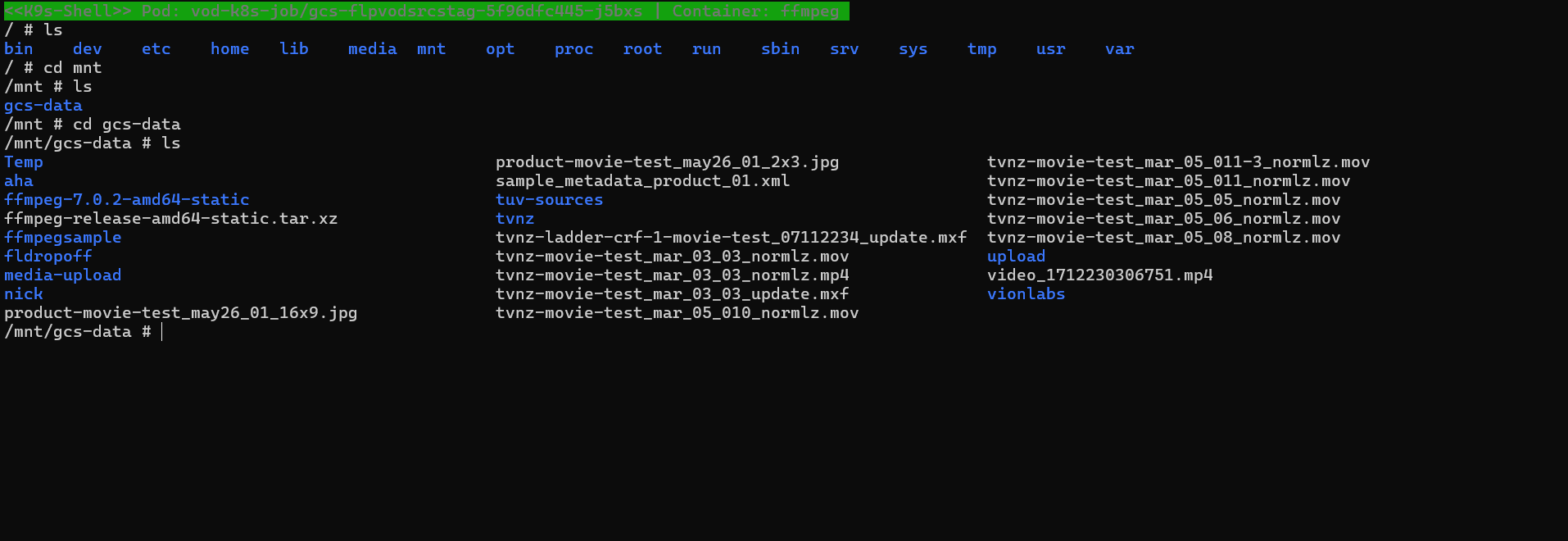
You can also shell into the pod to inspect the bucket contents directly:
kubectl exec -it <pod-name> -n <your-namespace> -- /bin/sh
ls /mnt/gcs-data
Troubleshooting Common Issues
PVC Stuck in Pending State
- Confirm the PV
claimRef.nameandclaimRef.namespaceexactly match the PVCmetadata.nameandmetadata.namespace. - Ensure
storageClassName: ""is set on both the PV and PVC — omitting this causes Kubernetes to look for a dynamic provisioner.
Pod Stuck in Init or ContainerCreating
- Check if the
gke-gcsfuse/volumes: "true"annotation is present on the pod template. - Confirm the GCS Fuse DaemonSet pods are running on the node:
kubectl get pods -n kube-system | grep gcsfuse
Permission Denied When Accessing Bucket Files
- Verify the Workload Identity binding was created correctly by running:
gcloud iam service-accounts get-iam-policy <your-gcp-service-account-email> - Confirm the GSA has the Storage Object Admin role on the target bucket, not just at the project level.
Implicit Directories Not Visible
- Add
mountOptions: "implicit-dirs"undervolumeAttributesin the PV spec. This is required for buckets with objects uploaded without explicit folder creation.
Summary
Here is a quick recap of the full setup flow:
- Enable the GCS Fuse CSI driver on your GKE cluster
- Create a Google Service Account (GSA) for bucket access
- Grant Storage Object Admin role to the GSA on the target bucket
- Create a Kubernetes Service Account (KSA) and bind it to the GSA via Workload Identity
- Create a PersistentVolume (PV) pointing to the GCS bucket
- Create a PersistentVolumeClaim (PVC) to request that volume
- Deploy a workload using the KSA and PVC to verify the mount
That's it — the setup is complete!
If you found this blog helpful, feel free to leave a comment.
Comments
0Got the same issue? Fixed it differently? Share below.
Leave a comment